How to Install and Use the building-an-exo Skill
A step-by-step walkthrough for downloading the ExO 3.0 Claude Skill from the OpenExO Resource Hub, installing it in your Claude desktop app, and using it inside a Cowork project.
Before you begin
You will need:
- An OpenExO account with access to the Resource Hub
- The Claude desktop app installed and signed in
- About five minutes
It is an AI-powered companion that applies ExO 3.0, the Intelligence Stack, the REWRITE Playbook, and OS Outline v25 to redesign your firm around AI. Once installed it triggers automatically whenever you ask Claude about building or rebuilding as an AI-native organisation, and it can also be invoked with the slash command.
Part 1 / Download the skill
Open the OpenExO Resource Hub
Navigate to the Resource Hub on the OpenExO platform.
Filter resources by Resource Type and select Skill. You should see the ExO 3.0 Claude Skill card appear in the results.

Open the ExO 3.0 Claude Skill page
Click Access Content on the skill card. You will land on the resource detail page with a full description and a Download Resource button.

Download the skill file
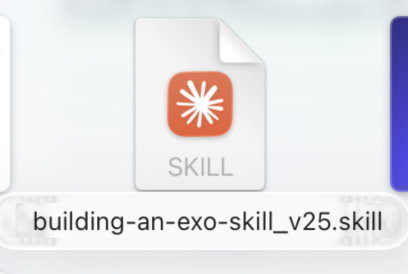
Click Download Resource. A file named building-an-exo-skill_v25.skill will be saved to your computer (usually to your Downloads folder).
The .skill file extension is the format Claude uses for packaged skills — do not unzip or rename it.
Part 2 / Install the skill in Claude
Open Claude and go to Customize
Open the Claude desktop app. In the left sidebar under the Chat tab you will see Projects, Artifacts, and Customize. Click Customize.

Choose Create new skills
The Customize Claude screen offers two paths: Connect your apps and Create new skills. Select Create new skills.

Open the Upload a skill menu
On the Skills screen, click the + icon in the top-left to open the Create skill menu.
Hover over Create skill, then choose Upload a skill from the submenu.

Upload the .skill file
In the Upload skill dialog, drag and drop your building-an-exo-skill_v25.skill file into the upload area, or click to browse and select it.
Claude will read the SKILL.md inside the package and register the skill.

Confirm the skill is installed
You will be taken to the building-an-exo skill page. Check that:
- building-an-exo appears under Personal skills in the left rail
- The toggle in the top-right is switched ON (blue)
- The Trigger row shows Slash command + auto
- The description matches the ExO 3.0 / Intelligence Stack / REWRITE Playbook summary
If all four are true, the skill is live and ready to use.

The .skill or .zip file must contain a SKILL.md file with the skill’s name and description formatted in YAML. The building-an-exo .skill file you downloaded from the Resource Hub already meets these requirements — no edits needed.
Part 3 / Use the skill in a Cowork project
The skill works best when Claude can see the documents about your company. The cleanest way to do that is from a Cowork project.
Switch to Cowork mode
At the top of the Claude app, switch from Chat to Cowork. You will see the “Let’s knock something off your list” landing screen.
In the prompt box, type something like:
Hey Claude please use the “building-an-exo” skill to analyse my company. All the relevant documents are in the project folder.

Open the Work in a project picker
Before sending, click the Work in a project dropdown at the bottom of the prompt box.
You will see your existing projects, plus Create new project and Choose a different folder.

Create a new project
Click Create new project. You will be offered three options:
- Start from scratch — set up a new folder with instructions and files
- Import a project — bring an existing Chat project over
- Use an existing folder — point Claude at a folder you already work from
Pick whichever fits your situation. For most first-time users, Start from scratch is the simplest path.

Name your project and add your files
On the Start a new project screen:
- Name the project (for example, ExO Analysis — Acme Corp)
- Optionally add instructions telling Claude how you want it to work in this project
- Drop the company documents you want analysed into the Add files area
- Confirm the project location on your computer, then click Create
Once the project opens, send your prompt. The building-an-exo skill will trigger automatically and walk you through ExO 3.0, the Intelligence Stack, and the REWRITE Playbook against your real documents.

Troubleshooting
- Skill does not appear after upload — refresh the Skills view, or close and reopen the Claude app.
- Toggle is off — click the blue switch next to Share at the top right of the skill page to enable it.
- Skill is not triggering — try the slash command, or include trigger phrases like “ExO 3.0”, “building an ExO”, or “Intelligence Stack” in your prompt.
- File rejected on upload — confirm the file is the original
.skilldownload and has not been unzipped or renamed.